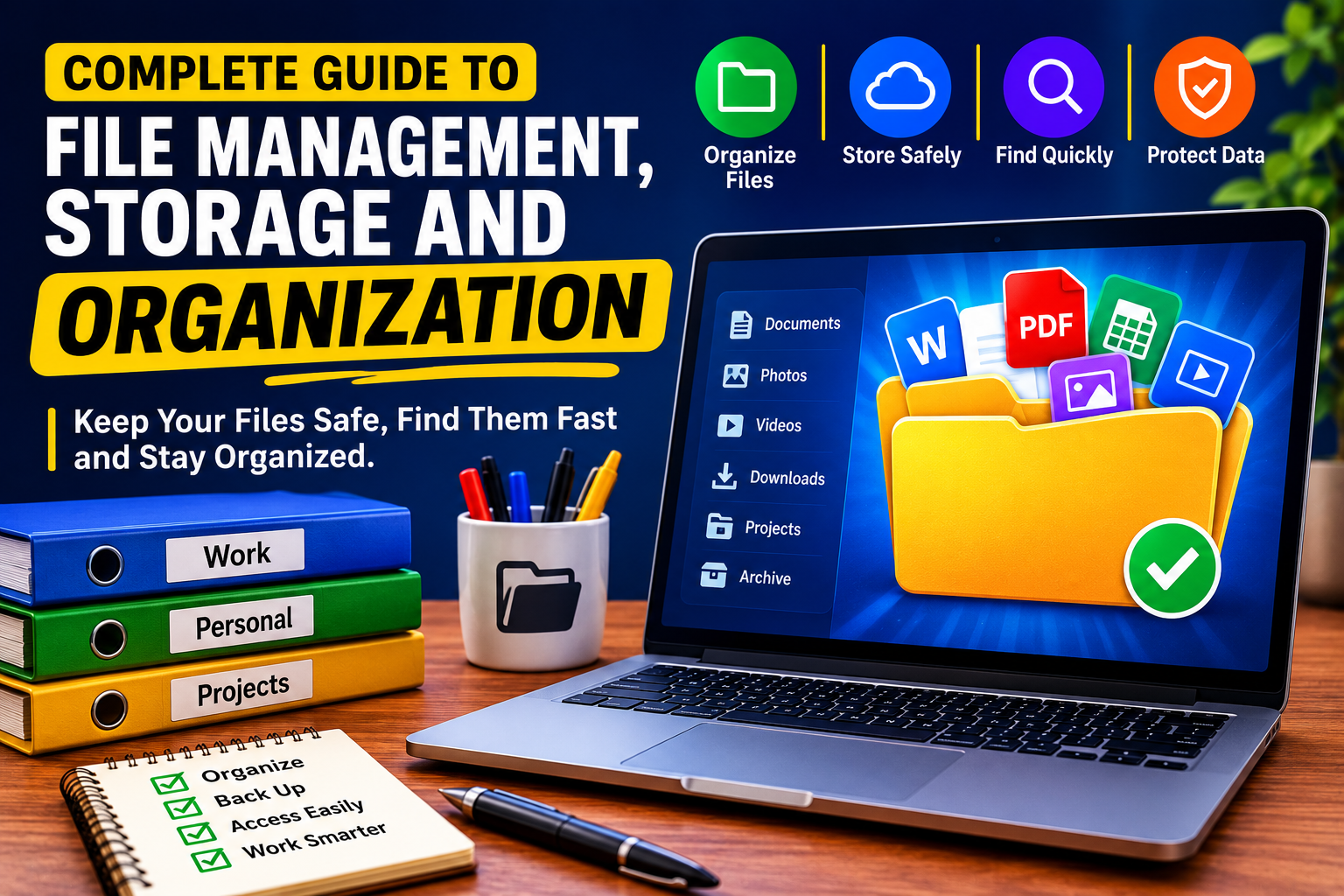
Complete Guide to File Management, Storage and Organization
Digital files have become as important as physical documents. Photos, work documents, school assignments, financial records, videos, downloads, project files, and application data can quickly accumulate across computers, phones, external drives, and cloud services.
Without a sensible system, finding a single document can become surprisingly difficult. Files get duplicated, folders become cluttered, storage fills up, and important information can be accidentally deleted.
Good file management solves these problems. It gives you a consistent way to store, organize, find, protect, back up, and eventually remove digital files.
This complete guide explains the fundamentals of file management, the different types of storage, practical organization methods, backup strategies, naming conventions, and common mistakes to avoid.
What Is File Management?
File management is the process of organizing, storing, naming, accessing, protecting, backing up, and deleting digital files.
It applies to files stored on:
- Computers
- Smartphones and tablets
- External hard drives
- USB flash drives
- Network storage
- Cloud storage services
- Servers
- Shared workplace systems
A good file management system should make it easy to answer three questions:
- Where is the file?
- What is the file?
- Which version is the correct one?
The goal isn’t simply to create more folders. The goal is to create a system that remains understandable as the number of files grows.
Why Good File Organization Matters
Poor file organization creates problems that become more expensive over time.
A disorganized computer might contain hundreds or thousands of files with names such as:
document1.docxfinal.docxfinal2.docxnewfinal.docxIMG_4837.jpgScreenshot_2026-08-13.png
Eventually, you may no longer know which file is current or why certain files exist.
A structured system can help you:
- Find files faster
- Reduce duplicate files
- Protect important documents
- Free up storage space
- Avoid accidentally deleting important information
- Maintain multiple versions of projects
- Simplify backups
- Move files between devices
- Collaborate with other people
- Keep personal and professional information separate
Good organization also reduces mental overhead. Instead of remembering where every file is located, you can rely on a predictable system.
Understanding Files and Folders
A file is a digital object containing information. Examples include documents, images, spreadsheets, videos, audio recordings, and application files.
A folder is a container used to organize files and sometimes other folders.
For example:
Documents
├── Personal
│ ├── Financial
│ ├── Insurance
│ └── Records
├── Work
│ ├── Projects
│ ├── Reports
│ └── Contracts
└── Learning
├── Courses
└── Research
This structure allows files to be grouped according to their purpose.
However, folder structures can become too complicated. A system with dozens of nested folders may be just as difficult to navigate as a completely disorganized drive.
The best structure is usually simple, predictable, and consistent.
How to Create a Practical Folder Structure
Start with broad categories rather than creating a separate folder for every individual file.
For example:
Home
├── Documents
├── Photos
├── Videos
├── Projects
├── Downloads
└── Archive
For work:
Work
├── Active Projects
├── Clients
├── Finance
├── Marketing
├── Administration
└── Archive
For a specific project:
Website Project
├── Planning
├── Content
├── Design
├── Development
├── Images
├── Documents
└── Archive
This type of hierarchy makes it easier to expand the system without constantly redesigning it.
Avoid Excessive Folder Depth
A common mistake is creating too many levels.
For example:
Work
└── Projects
└── 2026
└── August
└── Client
└── Website
└── Content
└── Drafts
└── Blog
You may eventually spend more time navigating folders than managing your files.
Instead, use a structure that gets you to the appropriate file quickly.
Create Consistent File Names
File names are one of the most important parts of digital organization.
A useful filename should tell you what the file contains without requiring you to open it.
Instead of:
report.docx
use:
2026-08-sales-report.docx
Instead of:
IMG_3948.jpg
you could use:
2026-08-13-family-dinner.jpg
For projects:
website-homepage-copy-v03.docx
The exact naming convention matters less than consistency.
Useful Filename Elements
Depending on the type of file, names can include:
- Date
- Project name
- Client name
- Subject
- Version number
- Document type
- Status
For example:
2026-08-clientA-invoice-004.pdf
or:
project-alpha-budget-v02.xlsx
Use Dates Consistently
For files that are organized chronologically, the format:
YYYY-MM-DD
is particularly useful.
For example:
2026-01-15
2026-02-03
2026-08-13
Because the year comes first, files can be sorted chronologically without additional effort.
Choose a Version Control System
When working on documents or projects, avoid creating confusing filenames such as:
final.docx
final-new.docx
final-new2.docx
final-really-final.docx
Instead, establish a version system.
For example:
project-proposal-v01.docx
project-proposal-v02.docx
project-proposal-v03.docx
You can also distinguish between drafts and approved files:
project-proposal-draft-v03.docx
project-proposal-approved.docx
For collaborative projects, include dates or contributor initials where appropriate.
The objective is to make the file’s history understandable at a glance.
Understand the Different Types of Storage
Digital storage comes in several forms, and each has different advantages.
Internal Storage
Internal storage is the drive built into your computer or mobile device.
It provides fast access to applications and files and is usually the primary location for everyday work.
Common technologies include:
- SSDs
- HDDs
- Integrated flash storage
An SSD is generally faster and more resistant to physical movement than a traditional hard disk drive.
External Storage
External drives connect to a computer or other device.
They can be useful for:
- Backups
- Large media collections
- Project archives
- Moving files between computers
- Additional storage capacity
External storage should not automatically be considered a backup. If the only copy of an important file is on an external drive, losing or damaging that drive can still mean losing the file.
USB Flash Drives
USB flash drives are convenient for transferring smaller amounts of data.
They’re useful for temporary transfers, installers, documents, and portable files.
However, they shouldn’t generally be treated as the only long-term storage location for irreplaceable information.
Network Storage
Network-attached storage, commonly called NAS, provides centralized storage accessible across a local network.
It can be useful for:
- Families
- Small businesses
- Media collections
- Shared documents
- Computer backups
A NAS can provide more control over storage, but it still requires appropriate backup and security practices.
Cloud Storage
Cloud storage allows files to be stored on remote infrastructure and accessed through the internet.
Depending on the service, cloud storage can provide:
- Automatic synchronization
- File sharing
- Collaboration
- Version history
- Remote access
- Device synchronization
Cloud storage can be extremely useful, but it shouldn’t encourage people to abandon backups or security precautions.
Storage Is Not the Same as Backup
This distinction is extremely important.
Storage is where you keep files. Backup is an additional copy maintained so you can recover files if something goes wrong.
For example, if your only copy of a photo exists in a cloud folder that synchronizes with your computer, deleting the photo may potentially synchronize that deletion across devices.
A backup provides another recovery path.
Think of it this way:
Storage helps you access your files. Backup helps you recover them.
A Simple Backup Strategy
A practical backup system should protect against several risks:
- Hardware failure
- Accidental deletion
- Theft
- Device loss
- Malware
- File corruption
- Physical damage
A useful approach is to maintain multiple copies of important files in different locations.
One widely used principle is the 3-2-1 backup approach:
- Keep at least 3 copies of important data.
- Store them on at least 2 different types of storage.
- Keep at least 1 copy off-site.
For example:
Computer
↓
External Backup Drive
↓
Cloud or Off-Site Backup
The exact strategy should depend on how valuable and irreplaceable the data is.
Separate Active Files From Archives
Not every file needs to remain in your active workspace forever.
Consider dividing information into:
Active
Files you are currently working on.
Reference
Files you occasionally need.
Archive
Older files that you want to retain but rarely access.
Temporary
Files that can eventually be deleted.
For example:
Projects
├── Active
├── Reference
├── Archive
└── Temporary
This prevents old files from overwhelming the workspace.
How to Organize Photos
Photos can quickly become one of the largest categories of personal digital data.
A simple organization system can use dates, events, or locations.
For example:
Photos
├── 2024
├── 2025
└── 2026
Inside each year:
2026
├── 01-January
├── 02-February
├── 03-March
└── 08-August
Alternatively, event-based organization might look like:
Photos
├── Family
├── Travel
├── Work
├── Events
└── Personal Projects
Choose whichever system makes sense for how you actually search for photographs.
Organizing Documents
Important documents deserve a predictable structure.
A personal system might look like:
Documents
├── Financial
├── Insurance
├── Education
├── Employment
├── Housing
├── Medical
├── Legal
└── Personal
For sensitive information, access controls and encryption should also be considered.
Don’t assume that simply placing sensitive files in a folder makes them secure.
Organizing Downloads
The Downloads folder is one of the biggest sources of digital clutter.
Browsers and applications often save everything there automatically:
- PDFs
- Images
- Installers
- Documents
- Compressed files
- Screenshots
- Temporary files
Instead of allowing Downloads to become permanent storage, treat it as an inbox.
A simple workflow is:
Download → Review → Rename → Move → Delete
Periodically review the folder and decide what each file is actually for.
What Files Should You Delete?
Deleting files can be useful, but don’t rush into permanent deletion.
Consider removing:
- Duplicate downloads
- Temporary installers
- Unnecessary screenshots
- Old exports
- Failed drafts
- Files that can easily be recreated
- Unused application caches
- Redundant media
Be more careful with:
- Financial records
- Legal documents
- Contracts
- Tax information
- Family records
- Business records
- Original photographs
- Important project files
When uncertain, archive first rather than immediately deleting.
How to Find Duplicate Files
Duplicate files consume storage and make organization harder.
Duplicates can appear when:
- Files are downloaded multiple times
- Photos are copied between devices
- Projects are exported repeatedly
- Cloud synchronization creates multiple copies
- Email attachments are saved repeatedly
Before deleting duplicates, verify that the files are genuinely identical.
Two files with similar names aren’t necessarily duplicates.
For example:
report-v1.docx
report-v2.docx
may contain meaningful differences.
Organizing Cloud Storage
Cloud storage can become just as messy as a computer’s hard drive.
Create a consistent structure before uploading thousands of files.
For example:
Cloud Drive
├── Personal
├── Work
├── Projects
├── Shared
├── Photos
└── Archive
Avoid creating multiple folders for the same purpose across different locations.
If a project belongs in one central location, keep it there rather than scattering files across several cloud folders.
Local Storage vs Cloud Storage
Neither approach is universally better.
| Feature | Local Storage | Cloud Storage |
|---|---|---|
| Offline access | Excellent | Depends on synchronization |
| Internet required | No | Usually for remote access |
| Physical control | High | Lower |
| Remote access | Limited unless configured | Excellent |
| Collaboration | More difficult | Usually easier |
| Hardware responsibility | User | Provider handles infrastructure |
| Backup responsibility | User | Still requires planning |
| Scalability | Depends on hardware | Usually easier |
For many users, a combination of local and cloud storage provides a practical balance.
Protect Your Files With Security Measures
Organization is only one part of file management.
Security is equally important.
Use appropriate measures such as:
- Strong passwords
- Multi-factor authentication
- Device encryption
- Secure backups
- Updated operating systems
- Trusted security software
- Restricted file permissions
- Encrypted sensitive archives where appropriate
Avoid storing sensitive information in easily accessible locations without protection.
If a computer is shared by multiple people, separate user accounts can also help prevent accidental access or modification.
Be Careful With File Synchronization
Synchronization is convenient, but it can create unexpected problems.
If a folder is synchronized across multiple devices, changes made on one device may propagate to others.
That means:
Delete on Device A
↓
Sync
↓
Deletion appears on Device B
Synchronization should therefore not be confused with backup.
Before relying on synchronization, understand:
- What gets synchronized
- How deleted files are handled
- Whether previous versions are retained
- How long deleted items remain recoverable
- Which devices have access
Create a File Cleanup Routine
File organization doesn’t need to become a major project.
A small routine performed regularly can prevent major clutter.
Weekly
- Empty unnecessary downloads
- Rename important new files
- Move files out of temporary folders
- Delete obvious junk
Monthly
- Review large files
- Check duplicate downloads
- Organize recent photos
- Review project folders
- Confirm backups are working
Periodically
- Archive completed projects
- Review old storage
- Remove unnecessary applications and data
- Test recovery from backups
- Review security settings
The exact schedule matters less than consistency.
Use the Search Function Properly
Modern operating systems provide powerful file search capabilities.
Instead of manually opening dozens of folders, search using:
- Filename
- File type
- Date
- Location
- Keywords
- File size
Good filenames make search much more effective.
For example, searching for:
2026 budget
is more useful when your files are named:
2026-household-budget.xlsx
2026-business-budget.xlsx
2026-project-budget.xlsx
rather than:
budget1.xlsx
budget-final.xlsx
newbudget.xlsx
Common File Management Mistakes
Keeping Everything on the Desktop
The desktop should not become your permanent filing cabinet.
Use it for temporary access, then move files into appropriate folders.
Using Vague File Names
Names like stuff, new, document, and final become difficult to understand later.
Creating Too Many Folders
More folders don’t necessarily mean better organization.
Keeping Only One Copy
One copy is vulnerable to hardware failure, accidental deletion, theft, and other problems.
Treating Cloud Sync as a Backup
Synchronization and backup serve different purposes.
Never Archiving Old Projects
Completed projects can make active folders unnecessarily cluttered.
Deleting Files Without Checking Them
A quick cleanup can become a serious data-loss event if important files are removed accidentally.
Ignoring File Security
A perfectly organized folder containing sensitive information is still a security problem if unauthorized people can access it.
A Simple File Management System Anyone Can Use
If you’re starting from scratch, don’t attempt to organize every file perfectly on the first day.
Start with a simple structure:
Main Storage
├── Personal
├── Work
├── Projects
├── Photos
├── Documents
├── Archive
└── Temporary
Then apply four basic rules:
Rule 1: Name Files Clearly
Make filenames understandable without opening the file.
Rule 2: Keep Related Files Together
Don’t scatter documents belonging to the same project across unrelated folders.
Rule 3: Archive Completed Work
Move old projects out of active folders.
Rule 4: Back Up Important Information
Maintain additional copies of files you cannot afford to lose.
This simple system is enough for many people to dramatically improve their digital organization.
How to Build a File Management System for Work
Businesses and teams need more structure because multiple people may create, modify, and access the same files.
A project-based structure can work well:
Company
├── Administration
├── Finance
├── Marketing
├── Operations
├── Projects
│ ├── Project-A
│ ├── Project-B
│ └── Project-C
└── Archive
Each project can then use a consistent internal structure:
Project-A
├── 01-Planning
├── 02-Research
├── 03-Content
├── 04-Design
├── 05-Production
├── 06-Reports
└── 99-Archive
Numbered folders can be especially useful when you want a predictable order.
How to Manage Files Across Multiple Devices
If you use a computer, smartphone, tablet, and external storage, establish a clear source of truth.
For example:
Primary Computer
↓
Cloud Synchronization
↓
Phone / Tablet
↓
Independent Backup
Avoid manually maintaining several unrelated copies of the same project.
When possible, decide where the master copy lives and how other devices receive access.
When Should You Upgrade Storage?
You may need additional storage when:
- Your primary drive is consistently close to full
- Large media files dominate your storage
- Projects require more space
- Backups cannot fit on your current backup device
- Performance is affected by extremely limited free space
Before buying additional storage, clean unnecessary data first.
Sometimes the problem isn’t insufficient capacity. It’s simply poor organization.
The Long-Term Goal: Make Your Files Predictable
The best file management system is not necessarily the most sophisticated one.
It is the system you can understand six months from now.
A good structure should allow you to open your storage and quickly determine:
- Where current projects are
- Where personal documents are stored
- Where archived files belong
- Which files are backed up
- Which files can be deleted
- Which files are shared
- Which files contain sensitive information
That predictability is what makes a file management system sustainable.
Building a Digital Filing System That Lasts
File organization works best when it becomes a habit rather than a one-time cleanup project.
Use clear names, keep folder structures reasonably simple, separate active work from archives, review temporary files regularly, and maintain independent backups of information that matters.
Most importantly, design your system around how you actually use and search for your files. A system that looks perfect on paper but is difficult to maintain will eventually fall apart.
Whether you’re managing a personal laptop containing years of photos or a business handling thousands of project documents, the same principle applies: make important information easy to find, difficult to lose, and simple to maintain.