How Automation Software Uses Rules and Workflows to Perform Repetitive Tasks
Automation software has become an important part of modern work, helping individuals and businesses complete repetitive tasks without manually performing every step. From sending follow-up emails to organizing files and updating customer records, automated workflows can handle routine processes consistently and efficiently.
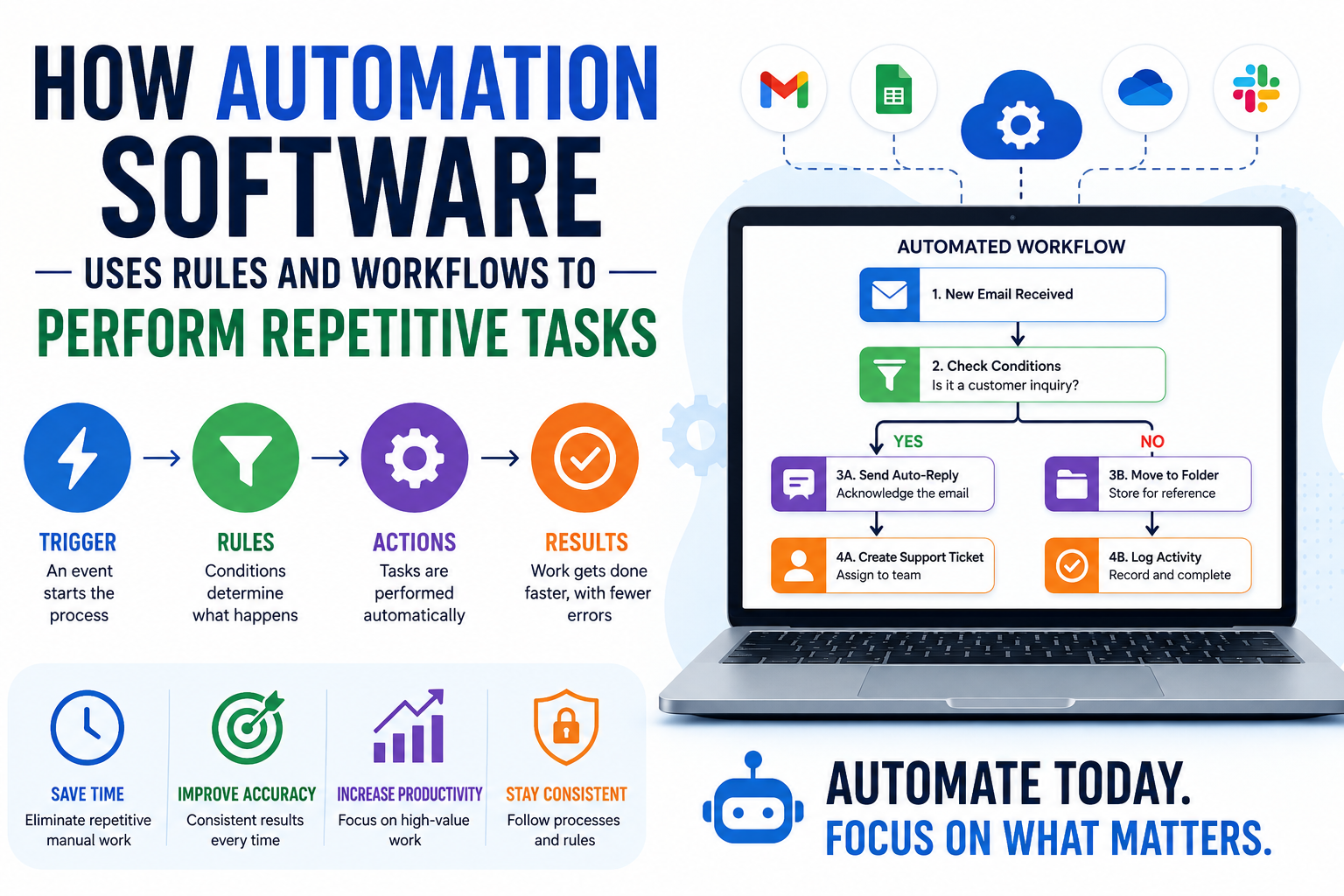
The basic idea is straightforward: when something happens, the software checks predefined rules and performs one or more actions automatically.
Understanding how these systems work can help businesses identify tasks that are suitable for automation while avoiding unnecessary complexity.
What Is Automation Software?
Automation software is technology designed to perform tasks or coordinate processes with limited human intervention.
Instead of requiring someone to repeatedly complete the same sequence of actions, automation software follows instructions that have been configured in advance.
For example, a business might create a workflow that:
- Receives a new customer inquiry.
- Adds the customer’s information to a database.
- Sends an acknowledgment email.
- Notifies a sales representative.
- Creates a follow-up task.
- Records the activity for future reference.
Once configured, the workflow can repeat these steps whenever the required conditions are met.
Automation can range from simple “if this, then that” rules to sophisticated workflows involving multiple applications, databases, approvals, calculations and decision points.
How Rules Power Automation
Rules are the basic instructions that tell automation software what to do.
A rule generally consists of a trigger, conditions and actions.
Triggers
A trigger is the event that starts an automated process.
Common triggers include:
- A new form submission
- An incoming email
- A new customer registration
- A calendar event
- A completed payment
- A file being uploaded
- A change to a database record
- A scheduled time
- A new task being created
For example:
When a customer submits a contact form, start the sales follow-up workflow.
The form submission is the trigger.
Conditions
Conditions determine whether specific actions should take place.
A workflow might check:
- Customer location
- Order value
- Account type
- Payment status
- Employee department
- Lead score
- File type
- Date or time
- Previous interactions
For example:
If the order value is greater than $500, notify the sales manager.
This allows automation to make decisions based on predefined criteria.
Actions
Actions are what the software actually does after the trigger and conditions have been evaluated.
Actions can include:
- Sending an email
- Creating a task
- Updating a database
- Moving a file
- Sending a notification
- Generating a document
- Updating a spreadsheet
- Assigning a lead
- Creating an invoice
- Posting information to another system
A complete rule therefore looks something like:
When a new order is received → check the order value → if it exceeds a defined amount → notify the appropriate employee.
What Is a Workflow?
A workflow is a sequence of connected steps designed to accomplish a particular process.
While a single automation rule may perform one action, a workflow can coordinate many actions in a specific order.
Consider an employee onboarding process.
A workflow might automatically:
New employee added → create accounts → send welcome email → notify IT → assign training → schedule orientation → update HR records.
Each step can depend on information generated by previous steps.
This makes workflows particularly useful for processes that involve multiple departments, applications or decisions.
The Difference Between Rules and Workflows
Rules and workflows are closely related, but they are not exactly the same.
| Feature | Rules | Workflows |
|---|---|---|
| Purpose | Define specific conditions and actions | Coordinate multiple steps |
| Complexity | Usually simpler | Can be highly complex |
| Structure | Often “if/then” logic | Sequential or branching process |
| Typical use | Notifications and simple actions | Business processes |
| Dependencies | Usually limited | Can involve many steps |
| Example | If invoice is overdue, send reminder | Invoice creation through payment collection |
Rules often serve as individual building blocks inside larger workflows.
How Automated Workflows Process Information
Modern automation systems generally follow a logical sequence.
Step 1: Detect an Event
The system waits for a trigger.
For example, a customer might complete an online purchase.
Step 2: Collect Relevant Information
The automation retrieves information associated with the event.
This could include:
- Customer name
- Email address
- Purchase amount
- Product
- Location
- Payment status
Step 3: Evaluate Conditions
The workflow checks whether specific rules apply.
For example:
Is the customer a new customer?
Or:
Is the purchase above the company’s threshold?
Step 4: Choose the Appropriate Path
Some workflows contain branches.
A new customer might receive one email, while an existing customer receives another.
The workflow could therefore operate like this:
New order
|
├── New customer → Welcome sequence
|
└── Existing customer → Customer confirmation
Step 5: Execute Actions
The automation performs the required tasks.
These might involve several different applications.
Step 6: Record the Result
Many systems maintain logs showing whether each step succeeded or failed.
This helps businesses troubleshoot problems and monitor automated processes.
Common Examples of Automation Software
Automation can be applied to almost any repetitive digital process.
Email Automation
Businesses can automatically send messages based on specific events.
For example:
- Welcome emails
- Appointment reminders
- Order confirmations
- Password notifications
- Follow-up messages
- Internal alerts
Data Entry Automation
Automation can transfer information between systems without someone manually copying and pasting it.
For example:
Online form → customer database → spreadsheet → notification
Marketing Automation
Marketing teams can automate parts of their customer journeys.
A workflow could automatically send different communications depending on whether someone opens an email, clicks a link or completes a purchase.
Customer Support Automation
Automation can classify incoming requests, assign tickets and notify appropriate employees.
For example, a support system might route technical questions to the IT team while billing questions go to the finance department.
File Management
Automated workflows can organize files according to predefined rules.
For example:
When a PDF is uploaded to a specific folder, rename it, move it to the appropriate directory and notify the relevant employee.
Financial Administration
Businesses can automate repetitive financial processes such as:
- Invoice reminders
- Expense categorization
- Payment notifications
- Transaction records
- Approval requests
Automation does not necessarily replace financial oversight; instead, it can reduce the amount of manual administrative work.
Why Businesses Automate Repetitive Tasks
The biggest advantage of automation is often not simply speed. It is the ability to make routine processes more consistent.
1. It Saves Time
Employees can spend less time performing repetitive administrative tasks.
Instead of manually processing hundreds of similar records, a workflow can handle much of the routine work automatically.
2. It Reduces Manual Errors
Copying information between systems repeatedly creates opportunities for mistakes.
Automation can follow the same instructions every time, reducing certain types of human error.
3. It Improves Consistency
A documented workflow gives employees a standardized process.
This can make business operations more predictable.
4. It Helps Employees Focus on Higher-Value Work
When routine tasks are automated, employees can spend more time on activities requiring judgment, creativity, communication and problem-solving.
5. It Makes Processes Easier to Scale
A manual process that works for 20 transactions may become difficult when transaction volume reaches thousands.
Automation can allow businesses to handle greater volumes without increasing manual workload at the same rate.
What Types of Tasks Are Best for Automation?
Not every task should be automated.
The best candidates usually have several characteristics:
- They happen frequently.
- They follow predictable steps.
- They involve structured information.
- They have clearly defined rules.
- They require little subjective judgment.
- They produce repeatable outcomes.
- They consume significant amounts of employee time.
For example, automatically sending a confirmation email after a purchase is generally easier to automate than negotiating a complex customer contract.
A useful question is:
Does this process happen repeatedly, follow a predictable pattern and have clearly defined decision points?
If the answer is yes, automation may be worth considering.
When Automation May Not Be Appropriate
Automation can create problems when it is applied to processes that require substantial human judgment.
Tasks involving ambiguous situations, sensitive decisions or constantly changing circumstances may require human oversight.
Automation can also make an inefficient process run faster without actually making it better.
For example, if a company has a confusing approval process involving unnecessary steps, simply automating those steps may preserve the underlying problem.
Before automating a process, businesses should first understand and simplify it.
Automate a good process rather than automatically preserving a bad one.
How Workflow Automation Connects Different Apps
One of the most useful capabilities of modern automation platforms is the ability to connect different applications.
A company might use separate tools for:
- Customer relationship management
- Accounting
- Project management
- Cloud storage
- Communication
- Forms
- E-commerce
Automation software can connect these systems so information moves between them.
For example:
Customer submits form
↓
CRM creates contact
↓
Sales team receives notification
↓
Follow-up task is created
↓
Customer receives confirmation
Without automation, an employee might have to manually transfer information between each system.
Scheduled Automation vs Event-Based Automation
Automation doesn’t always have to start when a user performs an action.
There are two common approaches.
Event-Based Automation
An event triggers the workflow.
Examples include:
- New customer registration
- New order
- New email
- Completed payment
- Uploaded file
Scheduled Automation
The system performs a task at a specified time or interval.
Examples include:
- Generate a daily report
- Send a weekly summary
- Back up files every night
- Review overdue invoices every morning
Some workflows combine both approaches.
For example, a system could check overdue invoices every morning and then automatically send reminders only to customers meeting certain conditions.
Conditional Workflows Make Automation More Flexible
Basic automation follows a simple sequence:
Trigger → Action
More advanced automation can introduce conditional logic:
Trigger → Condition → Action A or Action B
For example:
New customer
|
↓
Is customer located locally?
/ \
Yes No
↓ ↓
Local offer Standard offer
Workflows can contain multiple conditions and branches, allowing them to handle different scenarios.
This is one reason workflow automation can be useful for larger organizations with complex processes.
Automation Requires Good Data
Automated systems depend heavily on the quality of the information they receive.
If a workflow relies on inaccurate, incomplete or inconsistent data, the resulting actions may also be incorrect.
For example, an automation designed to send customers different messages based on location may fail if location information is missing or incorrectly formatted.
Good automation therefore starts with good data practices.
Businesses should establish:
- Clear data fields
- Consistent naming conventions
- Validation rules
- Access controls
- Data-cleaning procedures
- Error handling
Automation doesn’t eliminate the need for data management. In many cases, it makes data quality even more important.
Monitoring and Error Handling Matter
An automated workflow can fail for many reasons.
An application may be unavailable. An account could lose authorization. A required field might be missing. An external service could change its API.
For this reason, reliable automation should include monitoring and error handling.
Useful features include:
- Error notifications
- Activity logs
- Retry mechanisms
- Workflow history
- Failure alerts
- Human approval steps
- Backup procedures
A workflow that silently fails can create more problems than the manual process it replaced.
Human Oversight Still Has a Role
Automation does not necessarily mean removing people from a process.
Many organizations use human-in-the-loop automation, where software handles routine steps but people make important decisions.
For example:
Application submitted → automated screening → employee reviews → approval → automated notification
This approach can combine the speed of automation with human judgment.
It is particularly useful when decisions have financial, legal, operational or customer-service consequences.
Automation and Artificial Intelligence Are Different
Automation software and artificial intelligence are increasingly used together, but they solve different problems.
Traditional automation generally follows predefined instructions.
For example:
If an invoice becomes overdue, send a reminder.
Artificial intelligence can handle less structured information and identify patterns.
For example:
Analyze this customer message and determine which support category it belongs to.
AI can therefore expand what automation systems are capable of doing, while traditional rules remain useful for predictable processes.
A modern workflow might combine both:
Customer message → AI classifies request → automation routes ticket → employee receives notification.
Security Should Be Part of Automation Design
Automated workflows frequently have access to business information and multiple software systems.
That makes security an important consideration.
Organizations should carefully evaluate:
- Which applications the automation can access
- What permissions it has
- Which employees can modify workflows
- Where credentials are stored
- What data is transferred
- How activity is logged
- How access is revoked
The principle of least privilege can be useful: an automation should generally have only the permissions necessary to perform its assigned tasks.
How to Start Automating Business Processes
Businesses don’t need to automate everything at once.
A practical approach is to begin with one repetitive process.
Identify the Repetitive Task
Look for activities employees perform repeatedly.
Document the Existing Process
Write down every step, including exceptions.
Identify Triggers and Conditions
Determine what starts the process and what decisions must be made.
Define the Desired Outcome
Be clear about what successful automation should accomplish.
Choose the Appropriate Software
The right solution depends on the complexity of the workflow, existing applications, security requirements and budget.
Test Before Deploying
Run the workflow using realistic examples and deliberately test unusual cases.
Monitor Performance
After deployment, check whether the workflow is producing the expected results.
Improve Over Time
Automation should be treated as an ongoing process rather than a one-time project.
Common Automation Mistakes to Avoid
Automating Too Much Too Quickly
Starting with dozens of workflows can make systems difficult to manage.
Ignoring Exceptions
Real-world processes rarely follow the ideal path every time.
Failing to Document Workflows
Employees need to understand what an automation does and why it exists.
Giving Automation Excessive Permissions
Overly broad access can increase security risks.
Not Monitoring Failures
A workflow that fails without notification can cause missed customers, incorrect records or delayed tasks.
Automating Without Measuring Results
Businesses should establish clear metrics to determine whether automation is actually improving the process.
The Future of Workflow Automation
Automation is increasingly moving beyond simple rules toward systems capable of combining traditional workflows, APIs, data analysis and artificial intelligence.
The basic principles, however, remain remarkably consistent:
Detect something. Understand the conditions. Decide what should happen. Perform the action. Record the result.
AI may make automation more adaptable, but predictable rules will continue to be valuable for processes where organizations need clear, repeatable and auditable behavior.
The strongest automation strategies are therefore unlikely to be about removing humans from every process. Instead, they will focus on assigning repetitive work to software while allowing people to concentrate on decisions that require context, judgment and creativity.
Building Smarter Workflows
The real value of automation software is not simply that it can perform tasks without human involvement. Its greater value comes from turning repeatable business processes into reliable systems.
When rules are clearly defined, workflows are thoughtfully designed, data is accurate and human oversight is applied where necessary, automation can reduce administrative work while improving consistency and scalability.
For businesses considering automation, the best starting point is usually not the most complicated process. It is the repetitive task that consumes time, follows predictable steps and has a clearly measurable outcome. Once that process works reliably, the same principles can be applied to increasingly sophisticated workflows.