How File Management Software Stores, Organizes, and Manages Digital Files
Digital files are everywhere. Documents, photographs, videos, spreadsheets, presentations, applications and databases can quickly accumulate on computers, smartphones and business systems.
Without a reliable way to organize them, finding a specific file can become surprisingly difficult.
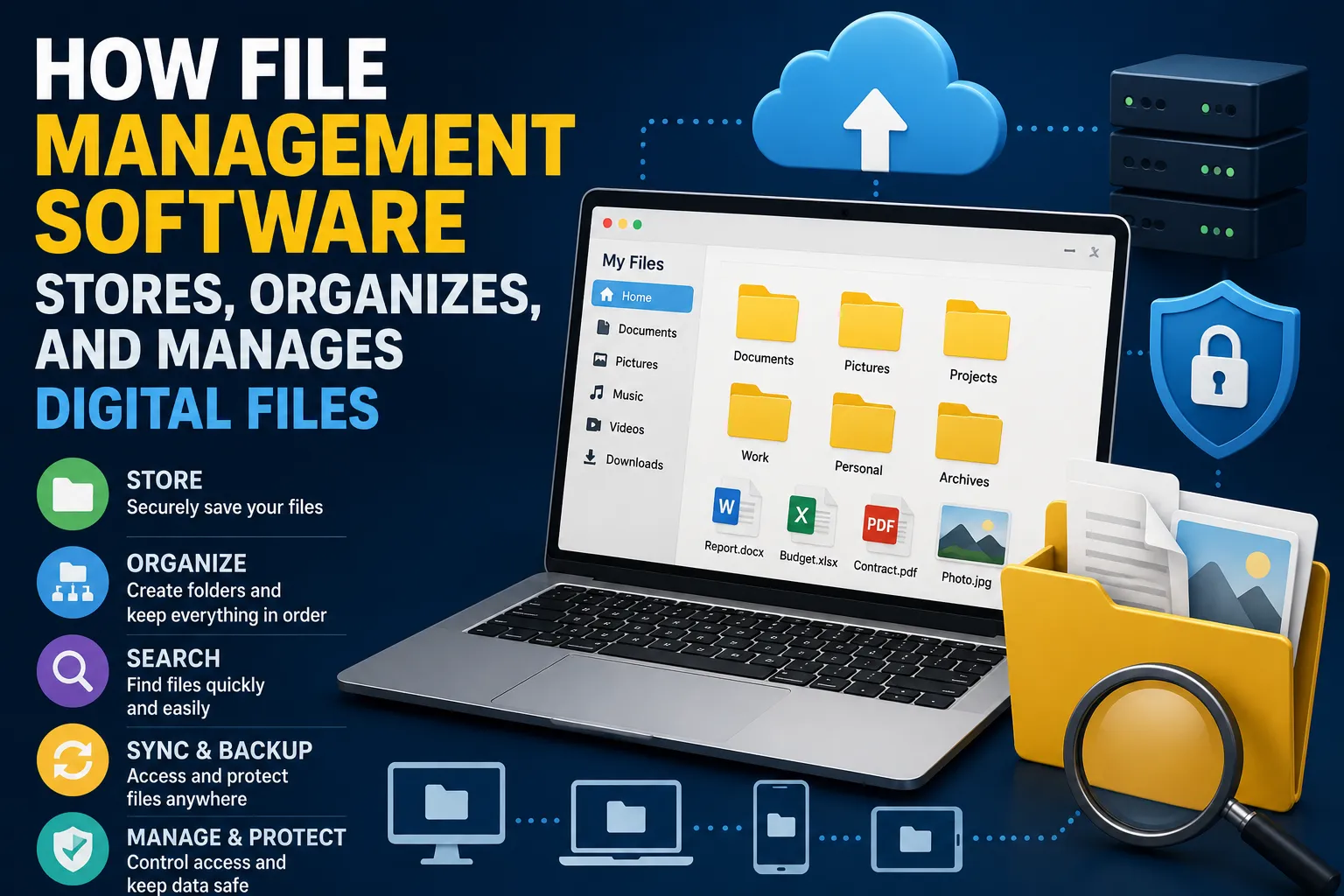
This is where file management software comes in. These tools help users store, organize, locate, move, rename, protect and sometimes synchronize digital files across devices and storage locations.
Understanding how file management software works makes it easier to choose the right tools, organize information effectively and avoid common problems such as duplicate files, misplaced documents and accidental deletion.
What Is File Management Software?
File management software is a program or system that allows users to interact with digital files and folders.
At its simplest, it provides an interface for performing tasks such as:
-
Creating files and folders
-
Opening files
-
Renaming files
-
Moving files
-
Copying files
-
Deleting files
-
Searching for files
-
Sorting files
-
Viewing file properties
-
Managing permissions
-
Backing up information
-
Synchronizing files
Most operating systems include built-in file management tools.
On a computer, users might interact with files through a graphical file manager. On smartphones and tablets, dedicated file-management applications provide similar functionality.
Businesses often use more advanced document and content-management systems capable of handling large quantities of information across multiple users.
For a broader look at how different types of applications work together, see The Complete Guide to Apps.
How Digital Files Are Actually Stored
Before understanding file management software, it helps to understand where digital files physically reside.
A file is ultimately stored as digital information represented by binary data.
That information can be stored on:
-
Hard disk drives
-
Solid-state drives
-
USB drives
-
Memory cards
-
Network storage systems
-
Servers
-
Cloud storage platforms
File management software does not necessarily store the actual data itself.
Instead, it provides a way for users and other applications to interact with the underlying storage system.
For example, when you create a document and save it to a folder, the operating system determines where the corresponding data is stored on the storage device.
The file manager then displays that file in a way that is understandable to the user.
Files and Folders Create a Logical Structure
One of the most important concepts in file management is the distinction between files and folders.
A file contains digital information.
A folder provides a logical way of grouping files and other folders.
For example, a business might organize documents like this:
Company Documents
├── Finance
│ ├── Invoices
│ └── Reports
├── Marketing
│ ├── Campaigns
│ └── Images
├── Human Resources
│ ├── Policies
│ └── Employee Records
└── Projects
├── Project A
└── Project B
This hierarchical structure makes information easier to navigate.
Instead of keeping hundreds or thousands of files in one location, users can organize them according to projects, departments, dates, file types or other logical categories.
What Is a File Path?
A file path identifies where a file is located within a storage system.
For example:
Documents/Projects/Website/Research/report.docx
The path tells the computer where to find the file.
In traditional computer systems, the path may begin with a drive or storage volume.
For example:
C:\Users\Name\Documents\Projects\Report.docx
Different operating systems use different path conventions, but the underlying concept is similar.
File management software uses these paths to locate and manipulate files.
For a broader explanation of the software layer that manages resources and provides applications with their operating environment, see The Complete Guide to Operating Systems.
File Names Help Identify Information
Every file normally has a name.
A filename might look like:
annual-financial-report.pdf
The name helps users understand what the file contains.
Many file types also include an extension, such as:
-
.docx -
.pdf -
.xlsx -
.jpg -
.webp -
.mp4 -
.txt
The extension generally indicates the format of the file and helps the operating system determine which application should open it.
For example, a PDF file might automatically open in a PDF reader.
File Metadata Adds More Information
Files can contain information beyond their visible names.
This information is commonly called metadata.
Depending on the file type and operating system, metadata may include:
-
Creation date
-
Modification date
-
File size
-
File type
-
Author
-
Location
-
Permissions
-
Camera information
-
Tags
-
Version information
Photo files, for example, may contain metadata describing the camera used to capture the image and when the photograph was taken.
File management software can use metadata to help users search, sort and organize information.
How File Search Works
Searching is one of the most valuable features of modern file management software.
Instead of manually opening folders, users can enter a search term and receive matching results.
A search might look for:
budget
The system may return files whose names or searchable content contain the word.
More advanced search systems can also use metadata.
For example, a user might search for:
-
Files modified this week
-
PDF documents
-
Images taken last month
-
Files larger than 1 GB
-
Documents created by a particular person
Some systems index the contents of documents so that users can find words appearing inside files rather than only in their filenames.
What Is File Indexing?
File indexing is the process of creating a searchable record of information about files.
Instead of examining every file from scratch each time a user performs a search, the operating system can maintain an index.
The index may contain:
-
Filenames
-
File paths
-
Metadata
-
Text extracted from documents
-
Other searchable information
When a search is performed, the system can consult the index and return results much more quickly.
This becomes particularly important when a computer contains hundreds of thousands of files.
Copying and Moving Files
File managers generally provide two basic ways of transferring files: copying and moving.
Copying
Copying creates another version of the file while leaving the original in its existing location.
For example:
Original folder → Copy → Backup folder
The result is two separate copies.
Moving
Moving changes the file’s location.
For example:
Downloads → Documents
The file is no longer stored in its original folder.
Understanding the difference is important when organizing information and creating backups.
Renaming Files
Renaming allows users to change a file’s name without necessarily changing its contents.
A well-designed naming system can dramatically improve organization.
Compare:
IMG_4387.jpg
IMG_4388.jpg
IMG_4389.jpg
with:
2026-08-family-event-01.jpg
2026-08-family-event-02.jpg
2026-08-family-event-03.jpg
The second system provides more useful information at a glance.
Businesses can use naming conventions to make large collections of documents easier to search and manage.
Sorting and Filtering Files
File management systems commonly allow users to sort files according to different properties.
Files can often be sorted by:
-
Name
-
Date modified
-
Date created
-
Size
-
File type
-
Author
Filtering can narrow the results further.
For example, a user working with thousands of documents might display only PDF files modified during the current month.
These simple tools can significantly reduce the time required to find information.
File Compression and Storage Efficiency
Some file management applications support compression.
Compression reduces the amount of storage space required by certain files.
For example, multiple files can sometimes be combined into an archive such as:
project-files.zip
Compression can be useful for:
-
Saving storage space
-
Sending multiple files together
-
Creating archives
-
Transferring data
-
Backing up information
The amount of space saved depends on the type of files being compressed.
Text-based documents often compress well, while already-compressed formats such as many JPEG images and video files may provide much smaller reductions.
How File Permissions Work
In multi-user environments, file management is not only about organization.
It is also about access control.
File permissions determine who can view, modify, delete or execute particular files.
A business server, for example, might allow employees to read certain documents while restricting editing privileges to authorized staff.
Permissions can help protect sensitive information from unauthorized access.
Depending on the operating system or storage platform, permissions may be assigned to:
-
Individual users
-
Groups
-
Administrators
-
Applications
-
System processes
Cloud-based systems often provide their own permission models as well.
File Management in Businesses
Businesses generate enormous quantities of digital information.
This can include:
-
Contracts
-
Invoices
-
Customer records
-
Presentations
-
Marketing materials
-
Product documentation
-
Employee records
-
Financial reports
-
Project files
-
Legal documents
Without a consistent management system, important information can become difficult to locate.
Businesses therefore often establish policies covering:
-
Folder structures
-
Naming conventions
-
Access permissions
-
File retention
-
Version control
-
Backup procedures
-
Archiving
-
Document deletion
These policies help employees manage information consistently.
For organizations that need more specialized systems for storing and retrieving documents, document management software can provide capabilities beyond a traditional file manager.
Version Control Prevents Confusion
A common problem with digital documents is having multiple versions of the same file.
For example:
Proposal.docx
Proposal-final.docx
Proposal-final2.docx
Proposal-final-revised.docx
Proposal-final-revised-NEW.docx
This quickly becomes confusing.
Version management systems provide a better approach by keeping track of changes over time.
Users may be able to determine:
-
Who changed a document
-
When the change occurred
-
What was changed
-
Which version is current
-
Whether an older version can be restored
This is particularly important when multiple people work on the same documents.
Cloud File Management
Cloud storage has changed the way many people manage files.
Instead of storing information exclusively on a local computer, users can store files on remote servers operated by a cloud provider.
Cloud software and SaaS can provide many of the services that make cloud-based file management possible.
Cloud file systems can provide:
-
Access from multiple devices
-
File synchronization
-
Online sharing
-
Collaborative editing
-
Automatic backups
-
Version history
-
Remote access
A user might create a document on a laptop and later access it from a smartphone or another computer.
The cloud system synchronizes changes between devices.
How File Synchronization Works
Synchronization keeps files or folders consistent across multiple locations.
Imagine a user has a document stored on both a laptop and a cloud service.
When the document is modified, synchronization software detects the change and uploads the updated version.
Other connected devices can then receive the updated file.
This process can happen automatically in the background.
Synchronization is convenient, but it should not automatically be confused with backup.
Synchronization Is Not the Same as Backup
This distinction is extremely important.
A synchronized file can be deleted from multiple devices if the deletion is synchronized as well.
A backup is designed specifically to preserve a recoverable copy of information.
A good backup strategy may maintain:
-
Multiple copies
-
Different storage locations
-
Historical versions
-
Offline or otherwise isolated copies
This provides greater protection against accidental deletion, hardware failure, ransomware and other forms of data loss.
File Management and Data Security
Digital files can contain highly sensitive information.
Security therefore becomes a central part of file management.
Good security practices can include:
-
Strong authentication
-
Appropriate access permissions
-
Encryption
-
Regular software updates
-
Secure backups
-
Malware protection
-
Access monitoring
-
Careful file sharing
Users should also avoid giving unnecessary people access to sensitive folders.
The principle of least privilege is useful here: people and applications should generally receive only the access they actually need.
How File Encryption Protects Data
Encryption transforms readable information into a protected form that requires an appropriate key or credential to access.
It can protect files:
-
While stored
-
During transfer
-
During synchronization
-
During backup
Encryption is especially important for sensitive business information and personal data.
However, encryption does not eliminate all security risks.
If someone gains legitimate access to an unlocked account or device, encrypted files may still be accessible.
Security therefore requires multiple layers of protection.
Handling Duplicate Files
Duplicate files can consume storage and make organization more difficult.
Duplicates commonly appear when users:
-
Download the same file repeatedly
-
Copy folders between devices
-
Create multiple backups
-
Save email attachments
-
Export files multiple times
File management software can sometimes identify potential duplicates based on filenames, sizes or more advanced comparisons.
However, users should be careful before deleting duplicates.
Two files with similar names may contain different information.
Managing Large Media Libraries
Photographs and videos can consume significant amounts of storage.
A large media collection benefits from consistent organization.
Users might organize images by:
Photos
├── 2024
├── 2025
└── 2026
or:
Photos
├── Family
├── Travel
├── Work
└── Events
Adding descriptive filenames, metadata or tags can make large collections easier to search.
For example:
2026-07-nairobi-trip-01.jpg
is generally easier to identify than:
DSC_7821.jpg
Creative applications also depend heavily on organized media libraries, particularly when users work with large collections of photographs, video, audio and design assets. See what creative software does for photo, video, audio and design work for more context.
File Management on Smartphones
Smartphones have their own file-management requirements.
Mobile operating systems may restrict how applications access files for security and privacy reasons.
Users may still manage:
-
Downloads
-
Documents
-
Images
-
Videos
-
Audio
-
Shared files
-
Cloud storage
Modern smartphones increasingly integrate cloud services and application-specific storage, making the traditional folder structure less visible to users.
Nevertheless, files still need to be stored somewhere.
The operating system manages the underlying storage while providing users with appropriate ways to access their information.
Managing Files on Network Storage
Businesses and households can also store files on network-attached storage systems or shared servers.
Instead of keeping information exclusively on individual computers, users can access centralized storage through a network.
This can make collaboration easier.
For example, a company might have:
Shared Company Drive
├── Finance
├── Marketing
├── Operations
└── Projects
Access can then be controlled according to employees’ responsibilities.
Network storage can also make centralized backup and administration easier.
File Management and Artificial Intelligence
Artificial intelligence is beginning to influence file management as well.
Traditional file systems depend heavily on explicit filenames and folders.
AI-powered systems can potentially make information easier to find by understanding context.
Instead of searching only for a filename, a user might ask:
“Find the presentation about last year’s marketing strategy.”
An intelligent system could potentially identify relevant documents based on their contents and context.
AI can also assist with:
-
Automatic categorization
-
Document summarization
-
Metadata generation
-
Duplicate detection
-
Image recognition
-
Natural-language search
-
Document classification
These capabilities could make large collections of digital information easier to navigate.
However, AI-powered file management also raises privacy and security questions because intelligent systems may need to analyze the contents of files.
Common File Management Problems
Poor file organization can create several recurring problems.
Files become difficult to find
Without logical folder structures and naming conventions, users waste time searching.
Too many duplicates
Repeated copies consume storage and create uncertainty about which version is correct.
Important files are deleted
Without proper backups, accidental deletion can result in permanent data loss.
Sensitive files are exposed
Poor permissions can allow unauthorized users to access confidential information.
Storage becomes full
Large media collections and unnecessary files can consume available capacity.
Old files accumulate
Without an archiving or retention strategy, storage systems can become increasingly cluttered.
Best Practices for Organizing Digital Files
A few simple principles can make file management much easier.
Use descriptive filenames
Choose names that explain what the file contains.
Create logical folders
Organize files according to meaningful categories rather than creating random collections of documents.
Avoid unnecessary nesting
Too many levels of folders can make navigation difficult.
Use consistent naming conventions
For example:
YYYY-MM-DD_Project_Document-Type
Consistency makes sorting and searching easier.
Review files regularly
Delete unnecessary files and archive information that is no longer actively used.
Maintain backups
Important information should exist in more than one location.
Control access
Sensitive information should only be accessible to people who need it.
Keep software updated
File-management and operating-system updates can include important security improvements. Understanding how software updates work and matter can help users recognize why keeping these systems current is important.
Choosing File Management Software
The right software depends on what you need to manage.
For an individual user, basic file browsing, search and organization may be enough.
A small business might need:
-
Shared folders
-
Cloud synchronization
-
Permissions
-
Backup
-
Version history
A larger organization may require more advanced capabilities such as:
-
Document management
-
Workflow automation
-
Audit trails
-
Enterprise search
-
Compliance controls
-
Records management
-
Integration with other business systems
The best solution is therefore not necessarily the one with the largest number of features.
It is the one that provides the capabilities needed without creating unnecessary complexity.
The Future of Digital File Management
As digital storage continues to grow, file management is becoming less about manually browsing folders and more about finding information intelligently.
Traditional folder structures are unlikely to disappear entirely, but search, metadata, automation and AI are increasingly changing how people interact with digital information.
Future file-management systems may be able to understand the relationships between documents, automatically classify information and provide more natural ways to retrieve files.
Instead of remembering exactly where something was saved, users may increasingly describe what they need in ordinary language.
The challenge will be ensuring that greater convenience does not come at the expense of privacy, security or user control.
Making Digital Files Easier to Manage
File management software provides the organizational layer between people and the enormous amount of digital information stored on modern devices and networks.
It allows users to create structures, search for information, control access, move files, synchronize data and protect important documents.
For individuals, good file management can reduce clutter and save time. For businesses, it can improve collaboration, productivity, security and information governance.
The most effective approach is not simply to install better software. It is to combine appropriate technology with sensible organizational practices.
Clear filenames, logical folders, reliable backups, controlled access and regular maintenance can turn a chaotic collection of digital files into an information system that is easy to navigate and protect.